Typewriter Effect for Premiere
This popular effect is used by many to reveal your text. All you need to do is apply the typewriter effect to your text element. It will work with any text on a transparent background. Live text in Premiere. PNG files. PSD files. Import from After Effects.
Typewriter Plugin for Premiere
In this tutorial, we will explore the Typewriter effect from the Film Impact Premium Tools suite. This effect automates the process of animating text to appear letter by letter, offering a simpler and more efficient alternative to manually keyframing or using a linear wipe to reveal each character.
Character Detection
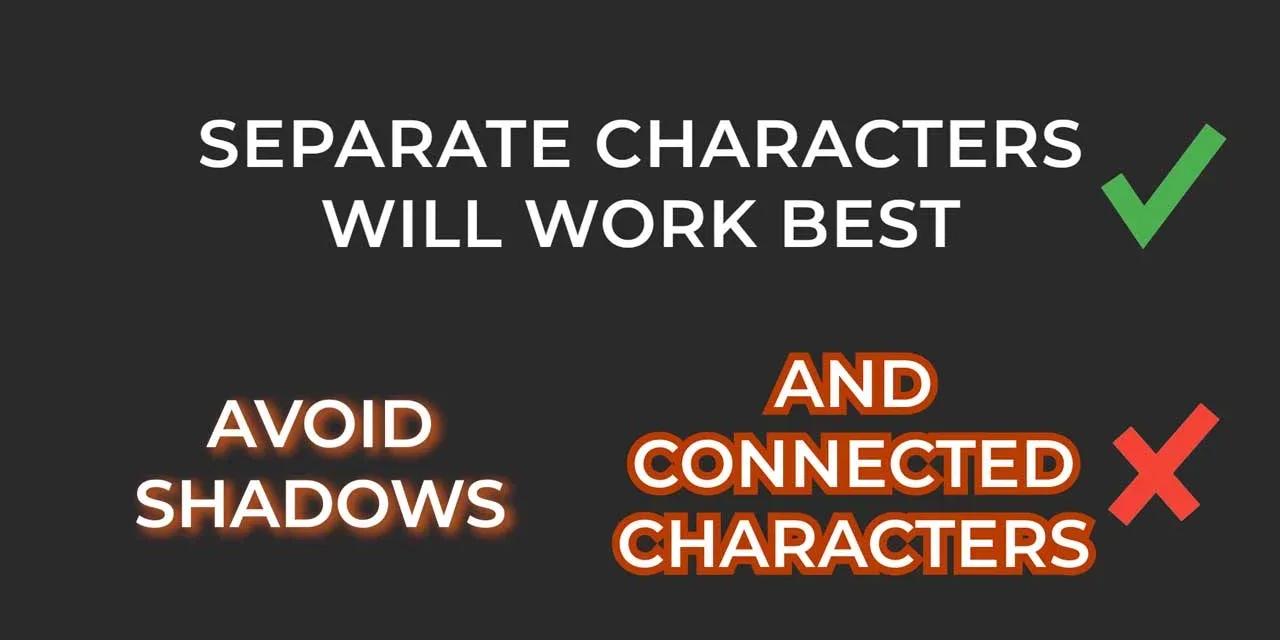
The plugin works by automatically detecting characters on a transparent background, ensuring a smooth typewriter effect. However, it’s important to avoid using drop shadows or interconnected characters, as this can cause entire words to appear simultaneously, rather than one character at a time. For best results, ensure that the text elements are clean and separated.
Typewriter Video Transition
The Typewriter effect by Film Impact offers a simple way to create a typewriter animation with just a drag-and-drop action. Once applied to the text, the effect automatically animates the appearance of each character. The transition can be adjusted to allow the text more time to appear smoothly.
How it Works
The effect works by analyzing the frame and recognizing each character placed on a transparent background. As long as the text is on a transparent layer, it will detect and animate each character individually. This makes it easy to import text from a Photoshop file or a PNG, copy the text into the timeline, and apply the effect to each line or section of the text.
Adjust and Tweak the Video Effect
Applying the Typewriter effect is straightforward, but further customization is possible, such as adding a cursor. Adjusting the cursor's color can give the animation more style. The cursor can also be made to blink, with customizable options for the blink frequency and final delay. The final delay allows the cursor to wait at the end of the transition. This delay is adjustable as a percentage of the transition length, providing more flexibility in how long the cursor blinks after the text is written.
Add a Blinking Cursor
To add a blinking cursor, specify the number of blinks (e.g., 10). If the cursor doesn’t blink right away, enabling the natural blinking option will ensure it behaves as expected. The final delay can also be set to control when the cursor starts blinking at the end of the text. Adjusting the transition length or the percentage of the delay will give more control over the animation, and adding a fade effect to the transition can further enhance the appearance.
Text Alignment
The Typewriter effect also allows for adjusting the text alignment. Options include center alignment, vertical alignment, or even a scrolling effect. These adjustments make it easy to customize the look and feel of the typewriter animation. In the case of multiline text, the alignment can be set to "centered" for a balanced look, and delays can be added at the start or end of each line. This flexibility allows for full control over the timing and appearance of the typewriter animation.
This is how the Typewriter Effect can be used in Adobe Premiere to create dynamic text animations.
Happy editing!

