Create Presets in Adobe Premiere
We know that every second in the editing room matters. That’s why Premiere effects aren’t just adjustable—they’re an essential part of your creative toolkit. The ability to fine-tune things like direction, blur, color, and more gives you the power to shape each moment of your story. Whether you’re highlighting a brand’s signature color or defining a key narrative transition, you need control.
But let’s be real: manually adjusting those effects every time you use them? It’s time-consuming. There’s a better way—creating and importing presets in Adobe Premiere. This is your shortcut to a smoother, more efficient workflow, where you can focus on storytelling, not settings.
Let’s dive in and show you how to build custom presets that you can reuse again and again. Read or watch!
How to Build Presets from Effects and Transitions
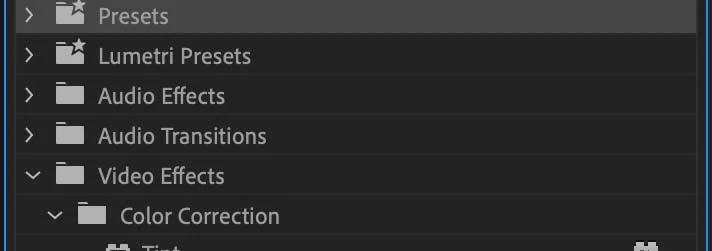
Before you get started, you’ll need an effect ready to go. In this example, we’ll use the built-in ‘Tint’ effect from the Color Correction tab under Video Effects.
Step 1: Apply and Modify Your Video Effect
Here’s how you can easily adjust the Tint Effect:
- Drag the Tint effect from the Effects Library onto a clip in your sequence.
- Select the clip by clicking it in your sequence.
- Press Shift+5 to open the Effects Controls Tab.
Once you’re in the Effects Controls panel, you’ll see the Tint effect listed. Now, let’s switch it up! Change the ‘Map White To’ setting to Red and watch how your entire clip transforms. This is the magic of Premiere—you’re in control.
Step 2: Create an Effects Preset
Now it’s time to lock in that custom effect so you can use it whenever you need. Just follow these three simple steps:
- Right-click the effect in the Effects Controls panel.
- Select ‘Save Preset…’.
- Give it a name like “Colorize Red (Tint)”.
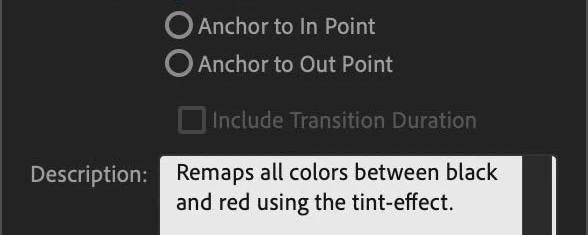
Add a description if you like, such as: “Remaps all colors between black and red using the Tint effect.”You’ve just saved time for future you! Every time you need this custom tint, it’s there, ready to go.
Where to Find Your Presets in Premiere
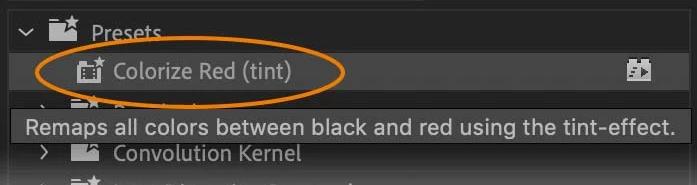
Once you’ve created a preset, it will live in the Effect Library under ‘Presets’. Need to organize your collection? You can create folders and rename presets, making sure everything is easily accessible. The more presets you create, the more time you save—keeping it structured helps you work smarter, not harder.
How to Add Presets in Premiere
Applying your new preset is as simple as dragging and dropping it onto another clip. Let’s say you’re working with the ‘Colorize Red (Tint)’ preset we just made:
- Navigate to the Effects Library.
- Find your preset.
- Drag and drop it onto a new clip.
Boom! You’ve just replicated your effect in seconds, giving you more time to focus on your artistic vision.
Creating Premiere Transition Presets
Now, let’s talk transitions. Just like with effects, you can create presets for transitions in Adobe Premiere. Here’s an example using Page Peel Impacts between two clips:
- Select the Page Peel Impacts transition in your sequence.
- Go to the Effects Controls Tab (Shift+5 to access it quickly).
- Change the Mode to Reversed Peel.
- Right-click the transition and select ‘Save Preset…’.
Just like that, you’ve crafted a custom transition you can apply to any project.
Preset Type Options Explained
When working with keyframes, you’ll want to know how Premiere handles them. Keyframes are locked to a certain point in time, but what happens when your clip length changes? That’s where preset types come into play:
- Scale: Keyframes are placed relative to the length of the clip. For example, a keyframe at 10% of a 60-frame clip would be placed at frame 6. If the clip is 90 frames, the keyframe moves to frame 9.
- Anchor to In-Point: Keyframes are locked to the start of the clip. No matter the clip length, the keyframes stay tied to the in-point.
- Anchor to Out-Point: Keyframes are locked to the out-point, adjusting relative to the end of the clip. This is useful for effects that end at a specific moment, like fades.
Get Free Transition Presets for Premiere
Looking for a quick way to supercharge your transitions? Film Impact offers a full library of free Premiere transition presets. Here’s how you can make the most of it:
- Choose your favorite transition from our premium pack.
- Tweak and adjust the effect to your liking.
- Create a preset and apply it with ease to your next project.
It’s that simple! Streamline your workflow and elevate your production quality with Film Impact’s video effects and transitions for Premiere. Explore the possibilities with 30 days of free access to our powerful tools. Your creativity is limitless—our presets just help you get there faster.
We can’t wait to see what you’ll create. Keep pushing the boundaries and deliver video content that wows your audience, every time!
