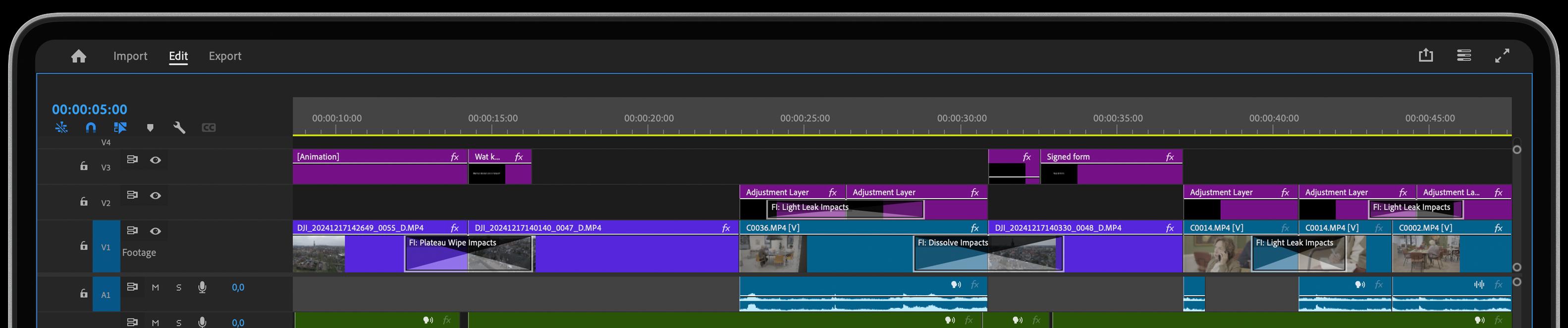
Create Dynamic Animations in Premiere | Part 2
How to create graphics animations in Premiere fast and easy. Bounce, Overshoot, and smooth curves. No After Effects Needed. No more keyframes. No complicated scripting. All you need is the Film Impact animation series.
Logo Animation in Premiere
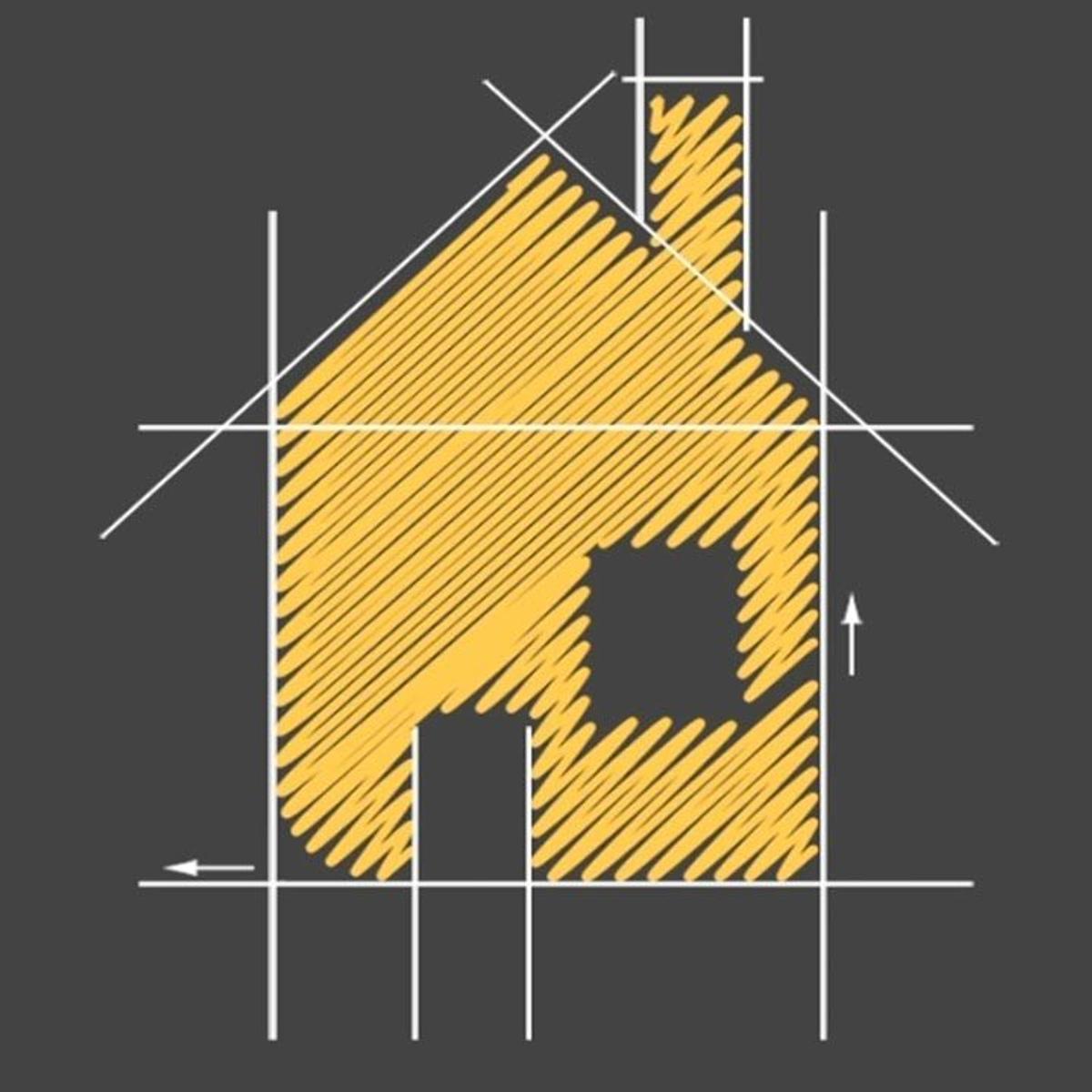
In this tutorial, we’ll explore creating a dynamic logo animation entirely within Premiere, using the Film Impact Animation Series. The animation is built from a hand-drawn figure and showcases the flexibility of working directly in Premiere without external software.
From Photoshop to Premiere
The process begins with a Photoshop file that contains all the separate elements of the graphic on different layers. Each part of the logo, such as the color fill and background, is on its own layer. To begin, this PSD file needs to be imported into Premiere.
Import PSD into Premiere
Once the Photoshop file is ready, drag it into the Project Panel. When importing, a key step is to choose how to handle the layers. Rather than merging the layers, select Import as a Sequence. This brings all the individual elements into Premiere while maintaining their separate layers. In the project panel, you’ll now see a folder with all the elements and a sequence at the bottom. Double-clicking the sequence will display all the layers spread out across multiple video tracks, ready for further editing.
Applying Video Transitions to Each Video Track
To animate the logo, apply a video transition to each of the layers. Start by applying the Pop Motion Impacts transition to the top element. For example, applying it to an arrow on the right side of the roof can create a dynamic bounce animation with an overshoot, visible in the Effects Controls Tab.
This process can be repeated for every layer. To speed up the workflow, the transition can be copied using Command+Drag. By selecting the left cut of each element, the transition can be pasted across all layers. However, to create a truly dynamic effect, it’s recommended to adjust the timing between the layers.
Adjusting Timing to Create Dynamics
To create a more dynamic look, the timing of each element needs to be staggered. This can be done by selecting every element in the sequence and moving each one by a frame. On the keyboard, press +1 to move the selected layer by one frame. Shift+Click can be used to deselect certain layers while the process is repeated to offset the rest. For a smoother animation, it is suggested to offset by one or two frames, especially when working with multiple layers.
Once this is complete, the staggered timing creates a staircase effect, allowing each element to animate independently for a more dynamic look. Adjustments to individual elements, such as the yellow area, can help balance the composition, while adding a dissolve transition can further enhance the visual flow.
Adjust the Video Transitions
If the movement or timing of the transitions isn’t quite right, further adjustments can be made in the Effects Control Tab. For example, increasing the frequency and amplitude of the bounce effect can result in more playful animations. The duration of the transition can also be extended for smoother movement.
Once satisfied with the adjustments, the transition can again be copied and applied to the remaining layers using Command+Drag. This method allows for quick application of changes across multiple layers.
Near Real-Time Performance
While the timeline’s yellow bar might indicate real-time performance, stacking up to 16 layers of video transitions can challenge even powerful computers. If real-time playback isn’t smooth, adjusting the playback resolution to half or quarter can improve performance. Another option is to set in-points and out-points and render the sequence. Once rendered, the animation will play back in full resolution and quality.
This approach allows for the creation of dynamic animations entirely within Premiere, showcasing the versatility of the Film Impact Animation Series.