Create Dynamic Animations in Premiere | Part 1
How to create graphics animations in Premiere fast and easy. Bounce, Overshoot, and smooth curves. No After Effects Needed. No more keyframes. No complicated scripting. All you need is the Film Impact animation series.
Animations in Premiere
This tutorial covers how to work with animations in Premiere using the Film Impact Animation Series. The tools introduced here allow for creating smooth, dynamic animations directly within Premiere without the need for additional software like After Effects.
Start with Two Graphic Elements
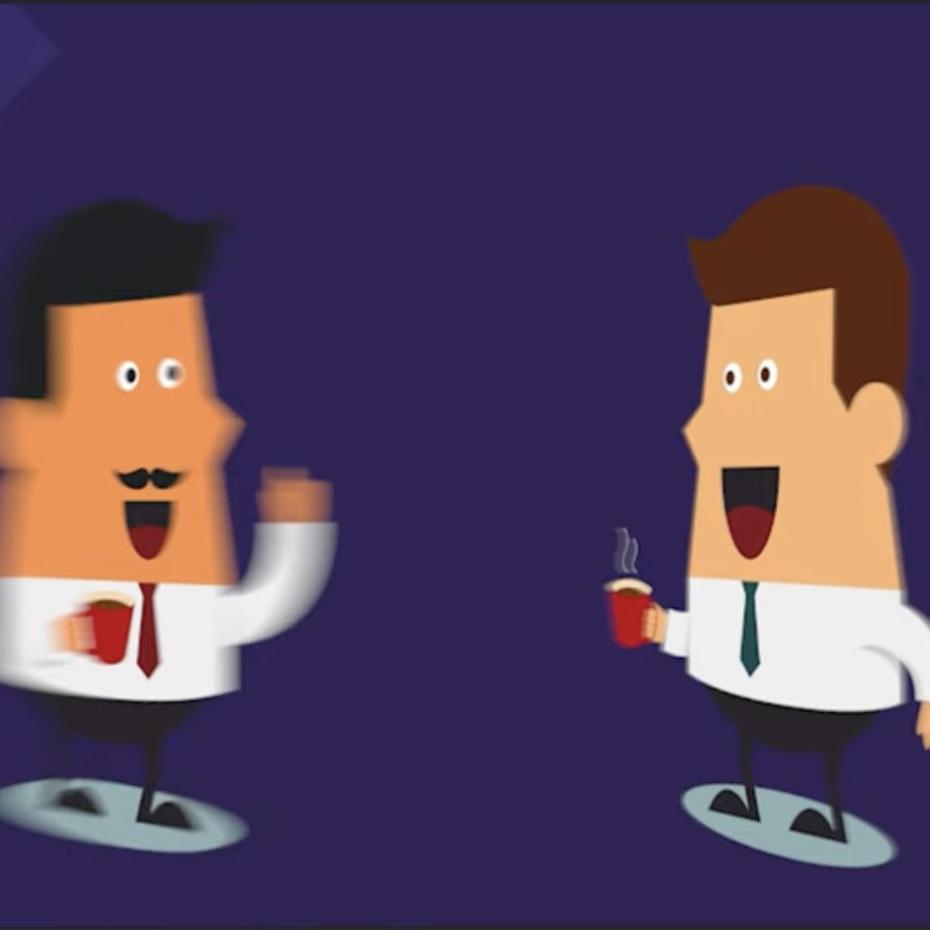
Begin by selecting two graphic elements. In this example, there are two subjects on a purple background. With the Flip Motion Impact effect, apply the animation to the objects. The default behavior will be visible immediately upon application, and adjustments can be made to give the animation more space or duration if needed.
Smooth Animation Curve
The animation uses a smooth curve, which can be viewed and adjusted. By default, the animation applies a bounce curve, creating a dynamic bounce effect. There are other types of curves available, such as the overshoot, which extends beyond the final position before settling.
These curves are fully adjustable. Parameters like frequency, amplitude, and decay can be modified to achieve the desired result. With a few tweaks, it's possible to create highly customizable and professional-looking animations.
Edit Faster: Avoid a Round-Trip to After Effects
One of the key benefits of the Film Impact tools is that they eliminate the need to switch to After Effects for complex animations. Everything can be done directly within Premiere, without needing any scripting or complex setups. Simply adjust the curves and settings in real-time to create the animation you're looking for.
Real-Time Performance
The animations perform in real-time within Premiere, meaning you can preview your changes immediately. You can easily copy and paste the animation to other elements, allowing for quick replication of effects across multiple objects. Adjusting parameters like transition length can create further variation between the animations, helping to add a dynamic feel to the project.
If needed, reducing the frequency of the bounce or overshoot can produce a more subtle and elegant effect, tailored to the specific animation.
3D Motion Blur
The toolset also includes 3D motion blur, which mimics the real-world effect of blurring fast-moving objects. Similar to the blur seen when a car drives by at high speed, motion blur enhances the sense of movement and speed in animations.
The motion blur engine in Film Impact offers up to 128 motion blur steps, ensuring smooth and high-quality results even at fast speeds. This high level of detail significantly reduces any visual stepping that might occur in lesser-quality motion blur effects.
To see the effect in action, enabling high-quality playback allows you to view the smooth, seamless blur without requiring time-consuming rendering processes, like those often required in After Effects.
Multi-Angle Tool
Another feature is the multi-angle tool, which applies motion blur in a 3D space. This tool adjusts the motion blur to follow the movement of the object in a three-dimensional environment, all while maintaining real-time performance. This capability adds a professional, polished look to animations with minimal effort.