Combine Video Transitions in Premiere
I'm here to show you an advanced technique. It's called: Stacking Your Video Transitions. And it's a technique to combine, and mix & match video transition and create a unique style.
Multiple Video Transitions
To apply multiple video transitions to a single cut, begin by selecting two pieces of footage. For example, after closing any unnecessary panels (like Lumetri Scopes), a good starting point is a Light Leak transition. Light leaks are popular for creating a soft, organic look. Simply drag and drop the effect onto the timeline and adjust its position to give the effect room to develop. The "Surprise-Me" option can provide a random but often appealing variation. Small adjustments to the dissolve time can enhance the transition’s smoothness.
Once the initial transition is applied, another Light-Leak can be added for variation, allowing for a mix-and-match approach that builds visual interest.
The Secret: Adjustment Layers
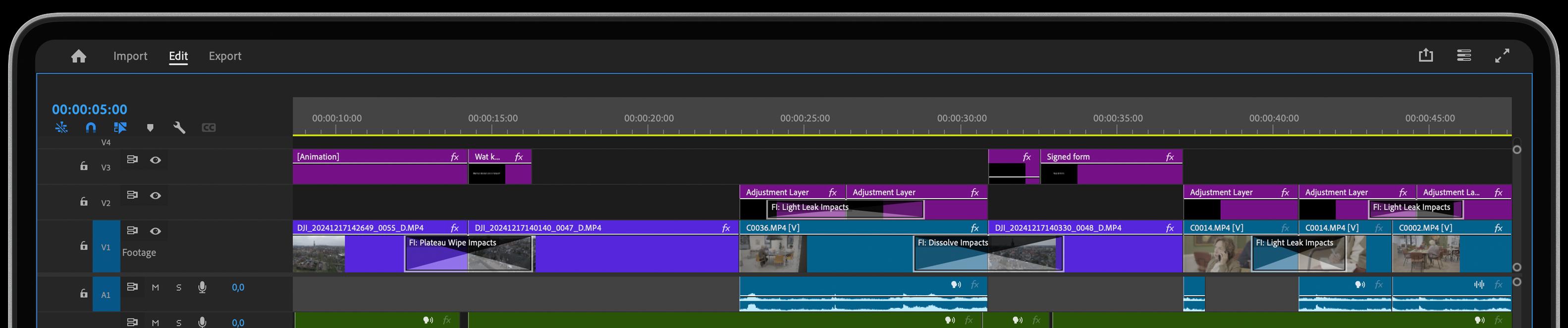
To further enhance control over transitions, an Adjustment Layer can be introduced. An adjustment layer acts as a container that represents everything below it in the timeline. When an effect is applied to the adjustment layer, the effect influences all the clips beneath it, making it a flexible tool for applying transitions across multiple layers.
After adding the adjustment layer to the timeline, a cut can be made at the desired transition point. Applying the Light Leaks effect again here will affect all the underlying footage. Small adjustments, such as changing the hue, intensity, or adding rotation, can refine the look, helping the light leak feel more natural and in line with the direction of light in the footage, such as sunlight from above.
Stacking Video Transitions
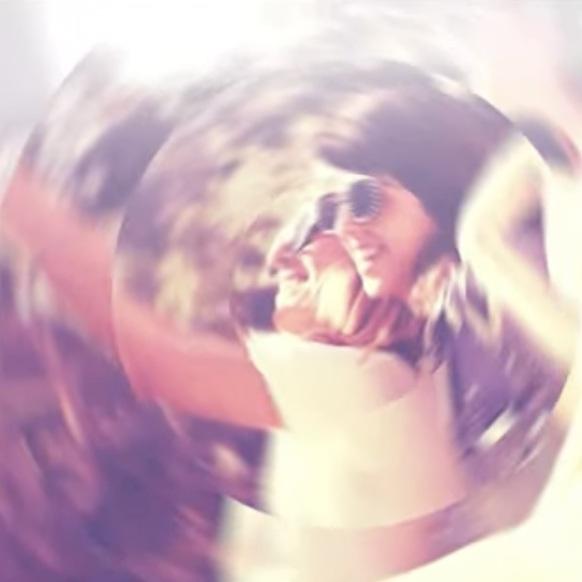
It is possible to stack multiple video transitions by using adjustment layers. For example, the light leaks effect can be layered with additional transitions like a Radial Blur. This adds complexity and visual appeal to the edit. Adjusting the center point and rotation of the Radial Blur creates dynamic movement in the transition.
In the Effects Control Tab, further modifications can be made, such as increasing the number of slices in the radial blur to create a modern, stylized effect. This can help draw attention to specific parts of the frame and enhance the flow between clips.
Adding Another Video Transition
When working with transitions, additional effects can be layered on by selecting the transition and navigating to the Effects Control Tab. A feature like Slices can be adjusted to create a more segmented, modern look. For example, increasing the number of slices to five creates a unique effect. Adjusting the rotation center can further focus on key subjects, like faces, by pulling the viewer’s attention toward them.
This layered approach results in a playful and dynamic transition between scenes, which can be achieved quickly and efficiently.
Real-Time Effects
Despite the multiple layers and transitions applied, the timeline remains responsive, with effects playing back in real-time due to GPU acceleration. Even when stacking effects on multiple video tracks, the performance should remain smooth.
This technique allows for creative freedom without sacrificing workflow speed.